type
Post
status
Published
date
Feb 16, 2026
slug
from-local-to-serverless-gcp
summary
Transforming a local Python automation into a scalable, serverless cloud application using Google Scheduler, Google Cloud Run and Telegram for on-demand execution.
tags
Python
Cloud
GCP
category
Sharing
icon
password
Collaboration often exposes the fragility of local workflows. What starts as a convenient script on a laptop quickly becomes a bottleneck when teammates need on-demand access. In this project, that meant migrating a data collection pipeline to a serverless Google Cloud architecture to enable secure, remote triggering via Telegram.
In a recent collaboration on a small data project, I found myself responsible for the backend infrastructure while my friend handled other aspects. The initial setup was simple: a set of Python scripts running locally on my machine. However, this simplicity quickly became a bottleneck. Every time my friend needed updated data, they had to wait for me to be physically present at my computer to trigger the scripts. It was an efficiency killer.
We needed to "democratize" the execution—moving the logic to the cloud so my friend could trigger tasks anytime, anywhere. Since our local version already integrated with Google Drive and Sheets for storage, migrating to Google Cloud Platform (GCP) was the natural choice; using AWS to talk to Google Drive felt disjointed.
This article details the journey of transforming a local Python script into a robust, serverless cloud application. We’ll explore the architectural shift, the decision to use a hybrid Cloud Run model, and the security considerations of moving to a production-grade environment.
The Evolution: From Local to Cloud-Native

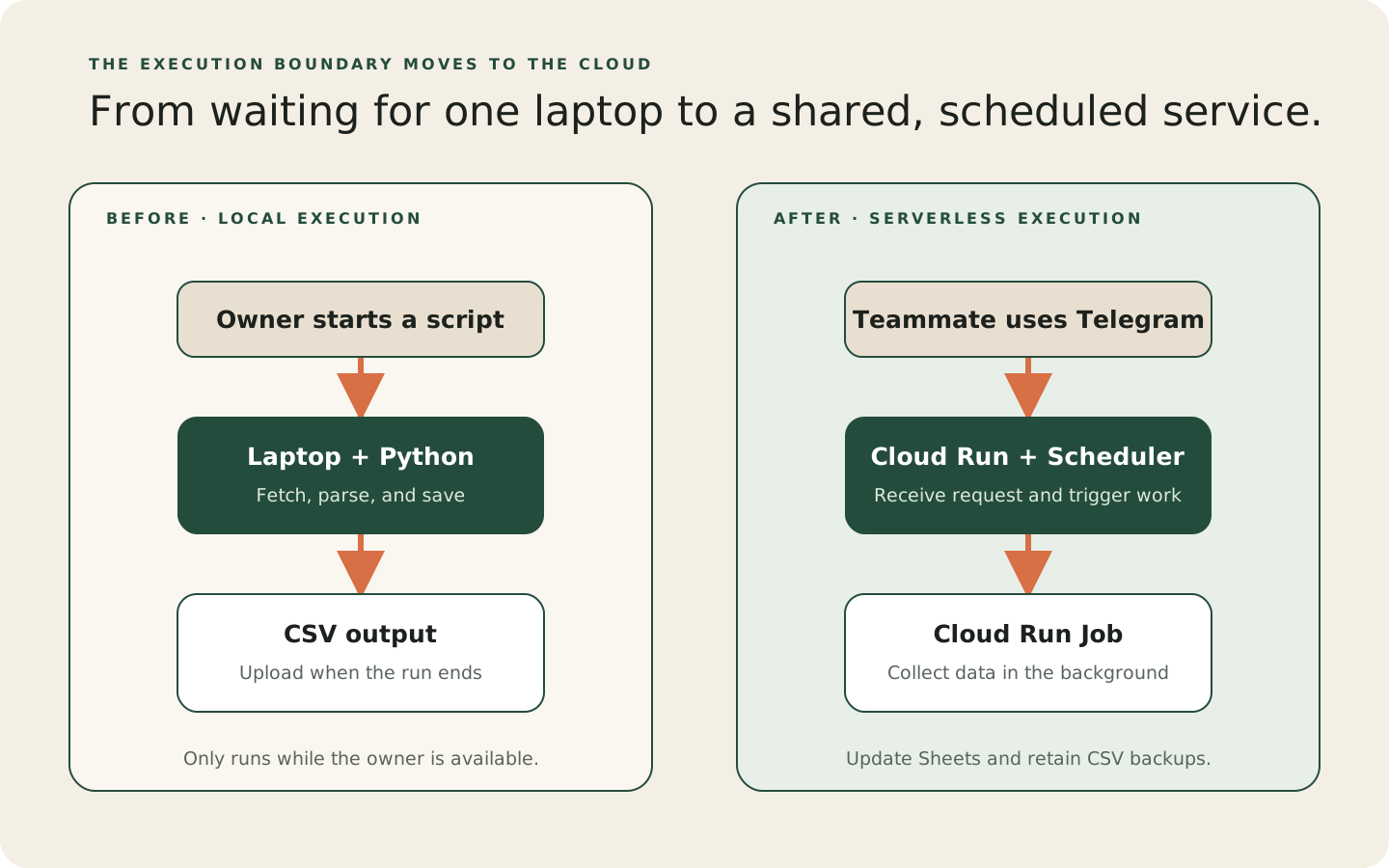
Phase 1: The Local Bottleneck
Our starting point was a standard local automation setup:
- Execution: Manually running
python main.pyon a laptop.
- Process: Fetch HTML -> Parse with BeautifulSoup/Selenium -> Save to CSV -> Upload to Google Sheets.
- Limitations: The dependency on local hardware meant no remote triggers, no background execution when the laptop slept, and a complete reliance on my availability.
Phase 2: The Cloud-Native Vision
To solve this, we designed a serverless architecture on GCP. The goal was to decouple the trigger from the execution and ensure the system was secure and scalable. We chose a Telegram Bot as the interface because it provides a user-friendly way for my friend—who has less coding knowledge—to trigger complex data tasks without needing to touch a command line.
The new architecture consists of five key components, working in concert:
- Interface (The Remote Control): A Cloud Run Service hosting a Telegram Bot. This acts as the user-facing interface, listening for commands via webhook.
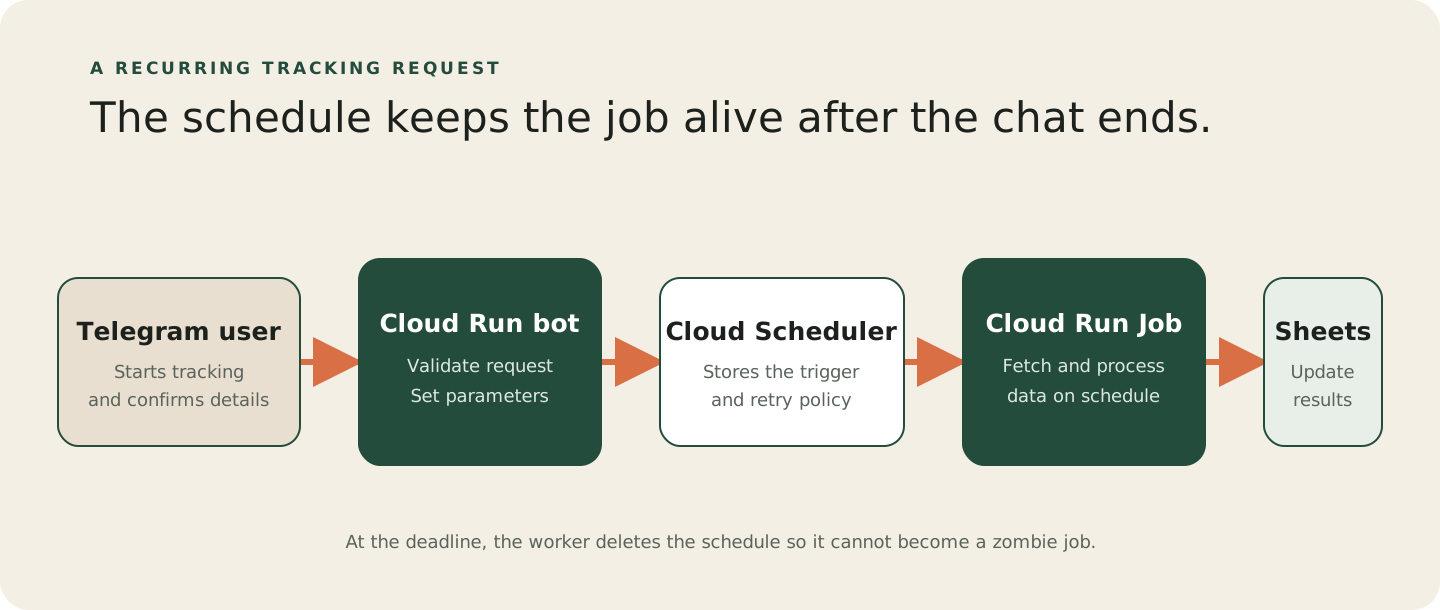
- Orchestration (The Scheduler): Cloud Scheduler handles recurring job triggers. When a user confirms a tracking request, the bot creates a scheduler job that runs every minute (or on a custom schedule) until the deadline is reached.
- Compute (The Worker): Cloud Run Jobs perform the actual data collection. These stateful, long-running tasks can execute for minutes without timeout constraints.
- Storage: Google Sheets serves as the user-facing database for real-time updates, while Google Drive stores backup CSVs.
- Security: Secret Manager guards API keys, and IAM Service Accounts enforce strict machine identity authentication between services.
The "Muscle": Cloud Run Jobs vs. Services
One of the critical architectural decisions was choosing the right compute model. Initially, I considered running everything as a single web service, but we quickly hit a dilemma.
Cloud Run Services are designed for request-response workloads—APIs, webhooks, and websites. They are excellent for handling short-lived HTTP requests and scaling to zero when idle. However, they enforce strict timeouts (typically 60 minutes max, but often lower by default). If a request takes too long, it’s terminated. This makes them perfect for our Telegram Bot webhook, which needs to respond instantly, but risky for our scraper, I mean the scraper may need to work for us for few days nonstop.
Cloud Run Jobs, on the other hand, are built for task-based workloads like data processing or batch scripts. They don't listen for HTTP requests; instead, they have a clear "start" and "finish" state and can run for hours without timing out.
The Decision: We adopted a hybrid approach. We use a Service (the Bot) to listen for commands and provide a user-friendly interface. When a user requests tracking, the Bot creates a Cloud Scheduler Job that will trigger our Cloud Run Job (the Worker) on a recurring schedule. This design achieves several goals:
- The Bot remains responsive to user commands (no timeout risk from long-running trackers)
- The Worker can run for the full tracking duration without HTTP timeout constraints
- Tracking can continue in the background without the user's phone (or the Bot) being active
- The Scheduler automatically stops triggering jobs after the user-defined deadline
Cloud Scheduler: The Heartbeat of Recurring Execution
One of the most interesting architectural decisions was how to handle recurring execution. Initially, one might think: "The Bot could just call the Job directly when the user confirms." However, this creates several problems:
- No Persistence: If the Bot service restarts, the user's request is lost.
- Recurring Execution: We need to fetch data repeatedly every minute for hours, not just once.
Enter Cloud Scheduler, GCP's managed cron service. Here's how it fits:
The Triggering Flow
Why Scheduler & Not a Cron Container?
GCP offers multiple ways to run recurring tasks:
- Cron in a container: Run a
while Trueloop checking time. (Wastes resources 24/7)
- Cloud Tasks: Good for queuing, but overkill for simple schedules
- Pub/Sub + Functions: Event-driven, but adds complexity
- Cloud Scheduler: Purpose-built for recurring jobs, scales to zero cost when idle
We chose Cloud Scheduler because:
- Cost-Efficient: We only pay for actual API calls (one per minute)
- Reliable: GCP manages retries, logging, and error handling
- Observable: Logs and metrics are built-in
- Clean Shutdown: Scheduler respects deadlines; no lingering processes
Security & Identity: Moving Beyond Personal Credentials
Migrating to the cloud meant we could no longer rely on my personal
credentials.json file sitting on a desktop. We had to adopt a production-grade security posture.Service Accounts & Least Privilege
We adopted dedicated machine identities (Service Accounts) following the cloud security principle of "zero trust architecture":
signchronicle-bot: This identity runs the Telegram Bot Service. Following Least Privilege, it has:roles/run.invoker: Invoke Cloud Run Jobsroles/cloudscheduler.admin: Create and manage scheduler jobsroles/iam.serviceAccountUser: Act as itself when creating OAuth tokens for job triggersroles/secretmanager.secretAccessor: Access API tokens- It has no access to Google Sheets (that's the Tracker's job)
signchronicle-tracker: This identity runs the Cloud Run Job (Worker). It has:roles/editor: Modify Google Sheets and Drive (to store tracking data)roles/cloudscheduler.admin: Delete itself from the schedule when deadline is reached- It has no ability to invoke other jobs or access the bot's infrastructure
Secret Management
Hardcoding API keys in code is a major security risk. We utilized Google Secret Manager to store sensitive values like the Telegram Bot Token and Google Service Account keys. These secrets are injected into the containers as environment variables at runtime, keeping our codebase clean and secure.
Navigating Organization Policies
Deploying into a business-tier GCP environment introduced constraints we hadn't faced in personal projects. Since I was using a Google Workspace business account (originally created for another purpose) rather than a standard personal Gmail account, the project was subject to stricter Organization Policies.
These policies restricted actions that are typically trivial in personal accounts, such as creating public IPs or generating long-lived Service Account keys. This complexity forced us to adopt a more robust, IAM-based architecture from day one, as we couldn't simply "generate a key and paste it in" like we might have done in a personal sandbox.
The Deployment Pipeline
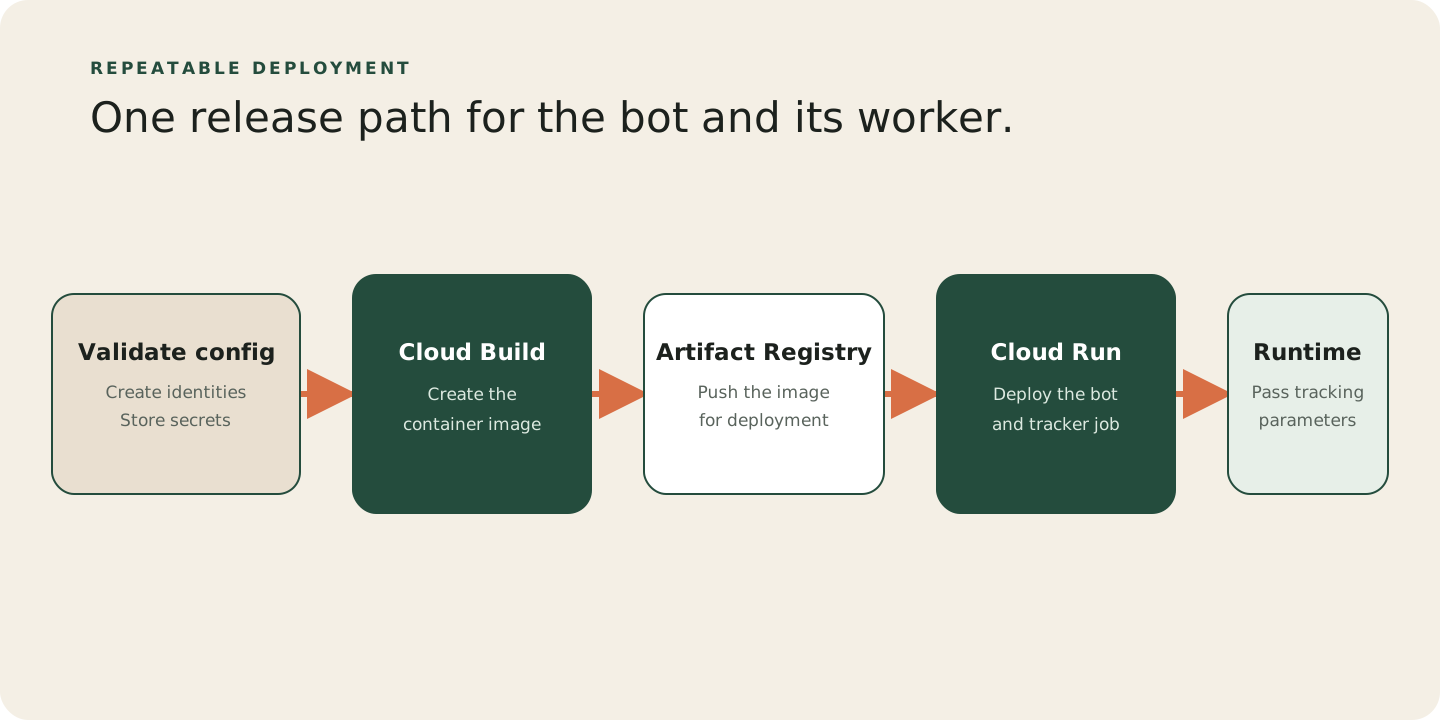
To ensure reliability and reproducibility, we established a streamlined deployment pipeline that automates the journey from code to cloud. We encapsulated the entire process in a
deploy.sh script. This approach eliminates the risk of human error associated with running multiple gcloud commands manually and ensures that every deployment follows the exact same steps.The script orchestrates Google Cloud's native tooling to handle the heavy lifting:
- Validate & Setup:
- Check for required environment variables (API keys, GCP project ID)
- Create Service Accounts with minimal required IAM roles
- Store secrets in Secret Manager (never leaving the codebase)
- Build:
- Use Cloud Build to containerize our application into a Docker image
- Include all dependencies (Python, Chromium for browser automation, timezone data)
- Tag the image for version control and traceability
- Store:
- Push the built image to Artifact Registry (GCP's managed container registry)
- Artifact Registry serves as the single source of truth for all deployments
- Deploy:
- Cloud Run Service (Bot): Deploy the Telegram Bot listening for webhooks and trigger the Cloud Scheduler
- Cloud Run Job (Tracker): Register the tracking script as a stateful Cloud Run Job
- Crucially: configure it to accept Environment Variables at runtime
- This enables the same Docker image to track different artists/events by injecting parameters
- Example:
PLATFORM=XYZ,EVENT_ARTIST=ABC,TERMINATE_TIME=20260228 14:00
Handling Failure & Cleanup: Production Considerations
Building for the cloud isn't just about scaling; it's about gracefully handling edge cases:
Timezone Matters
When a user specifies a deadline (e.g., "track until 14:00"), they mean their local time. We discovered this the hard way—Scheduler defaulted to UTC, causing off-by-8-hour misfires for Hong Kong users. Now we explicitly set
time_zone: "Asia/Hong_Kong" in every scheduler job. A small detail that significantly impacts user trust.Auto-Cleanup: Preventing Zombie Jobs
Without proper cleanup, a scheduler job would continue firing forever after the deadline passed. We implemented a two-pronged solution:
- User-initiated: The
/stopcommand allows users to delete any active schedule
- Automatic: When the deadline is reached, the Job itself deletes the Scheduler job that spawned it, preventing wasted API calls
This bi-directional cleanup pattern is crucial for cost optimization and system health.
What's Next?
With the infrastructure in place, the next challenge was building an interface that made triggering these complex jobs as easy as sending a text message. In the next article, we’ll dive into ChatOps, exploring how we built a serverless Telegram bot to orchestrate this entire pipeline.